Rollouts
Phased rollouts let you deliver updates to a controlled percentage of users first, monitor the impact, and widen the rollout once you confirm stability.
How Phased Rollouts Work
When you publish a release below 100% rollout, SwiftPatch delivers it only to that fraction of eligible devices. The selection is deterministic -- based on a hash of the device ID:
- A device in the 10% group stays in at 25%
- You compare a stable cohort against a stable control group
- Increasing the percentage only adds new devices, never removes ones that already received the update
Managing Rollouts
From the Dashboard
Every release row in the Releases table shows the current rollout percentage.
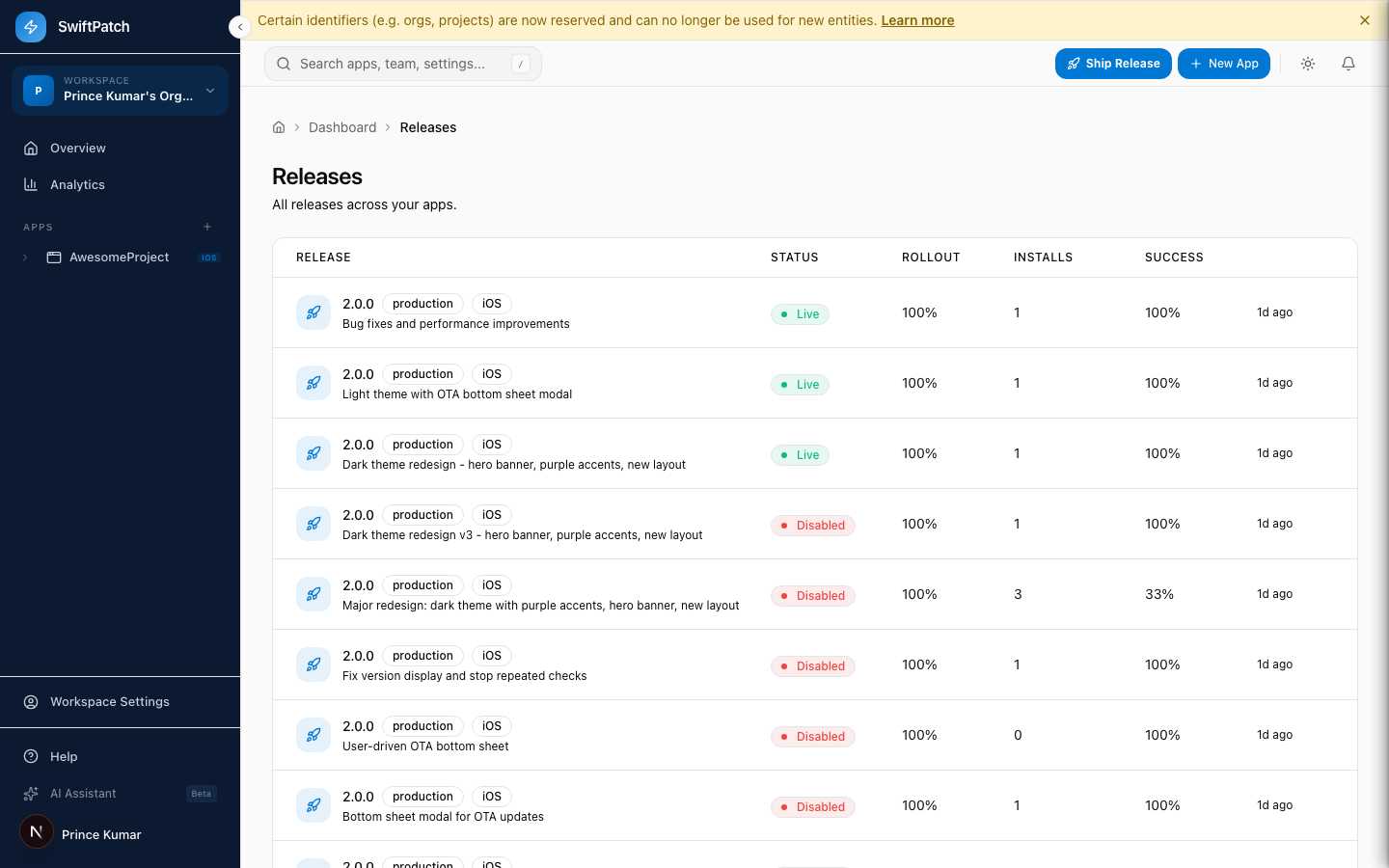
Step 1: Find the release.
Step 2: Click the Rollout percentage or the ... menu > Edit Rollout.
Step 3: Enter the new percentage (0-100).
Step 4: Click Save.
The change takes effect immediately.
Lowering the rollout percentage does not remove the update from devices that already installed it. To stop a problematic update entirely, disable the release.
From the CLI
swiftpatch releases rollout <release-id> --percent 25
Recommended Strategy
| Stage | Percentage | Hold | What to validate |
|---|---|---|---|
| 1 -- Canary | 1-5% | 1-2 hours | No crashes or startup failures |
| 2 -- Early ring | 10-25% | 4-12 hours | Success rate holds, no rollback spikes |
| 3 -- Broad | 50% | 12-24 hours | Performance, user behavior, edge cases |
| 4 -- GA | 100% | -- | Full release |
For critical hotfixes, compress the timeline: canary at 5% for 30 minutes, then jump to 100%.
What to Monitor
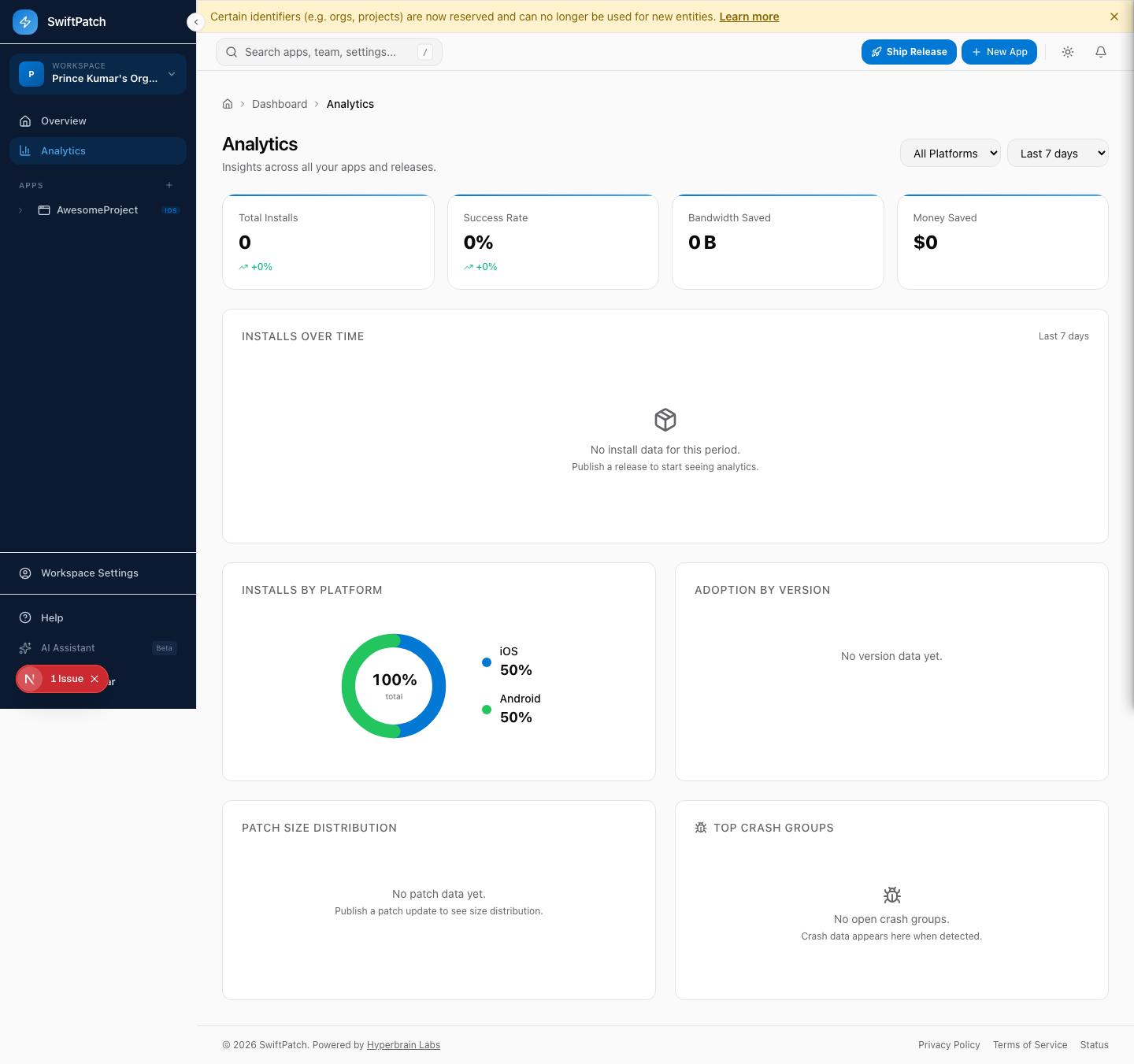
| Metric | Healthy | Warning |
|---|---|---|
| Success Rate | Above 98% | Below 95% or trending down |
| Crash Groups | No new groups | New group appears after rollout |
| Rollback Count | Zero or near-zero | Climbing steadily |
| Install Volume | Proportional to rollout % | Plateaus unexpectedly |
When to Increase
Increase when all of these hold:
- Success rate above 98% for the hold period
- No new crash groups linked to the release
- Rollback count is zero or negligible
- No regression reports from support or testing
When to Pause or Roll Back
Act immediately if you see:
- Success rate below 95%
- New crash group tied to the release
- Steadily climbing rollback count
- User reports of broken functionality
Do not wait for metrics to stabilize if you see a clear negative trend. Pausing is always cheaper than pushing a broken update to more users.
Rollback vs. Pause
- Pause -- Keep at the current percentage while you investigate. You can resume later.
- Disable / Rollback -- Mark the release as
Disabled. Devices receive the most recent Live release instead.
To disable: click the ... menu on the release row, select Rollback or Disable, and confirm.
If you disable a release and need to ship a fix, publish a new release rather than re-enabling the old one.
Automating Rollout Promotion
Script rollout increases using the CLI and your CI/CD system:
swiftpatch releases rollout <release-id> --percent 25
swiftpatch releases rollout <release-id> --percent 100
Combine with the analytics dashboard to build automated gates that check success rate and crash count before promoting.