Releases
The Releases page tracks every OTA update shipped across your apps.
Releases Overview
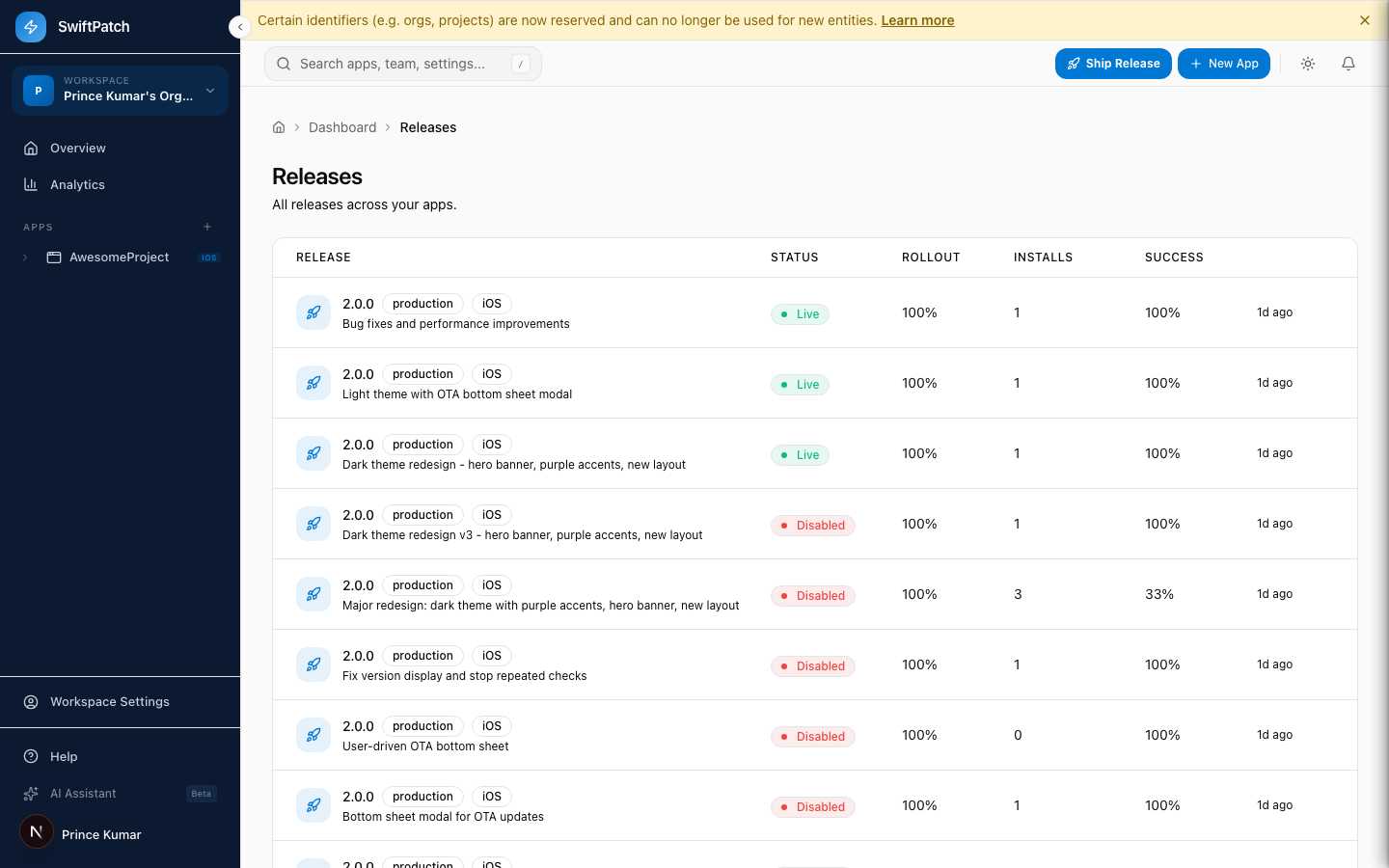
| Column | Description |
|---|---|
| Release | Version, channel, platform badge, and description |
| Status | Live or Disabled |
| Rollout | Percentage of users receiving this update |
| Installs | Devices that installed the update |
| Success | Install success rate |
Click Ship Release in the top-right to publish a new update from the dashboard.
Project-Level Releases
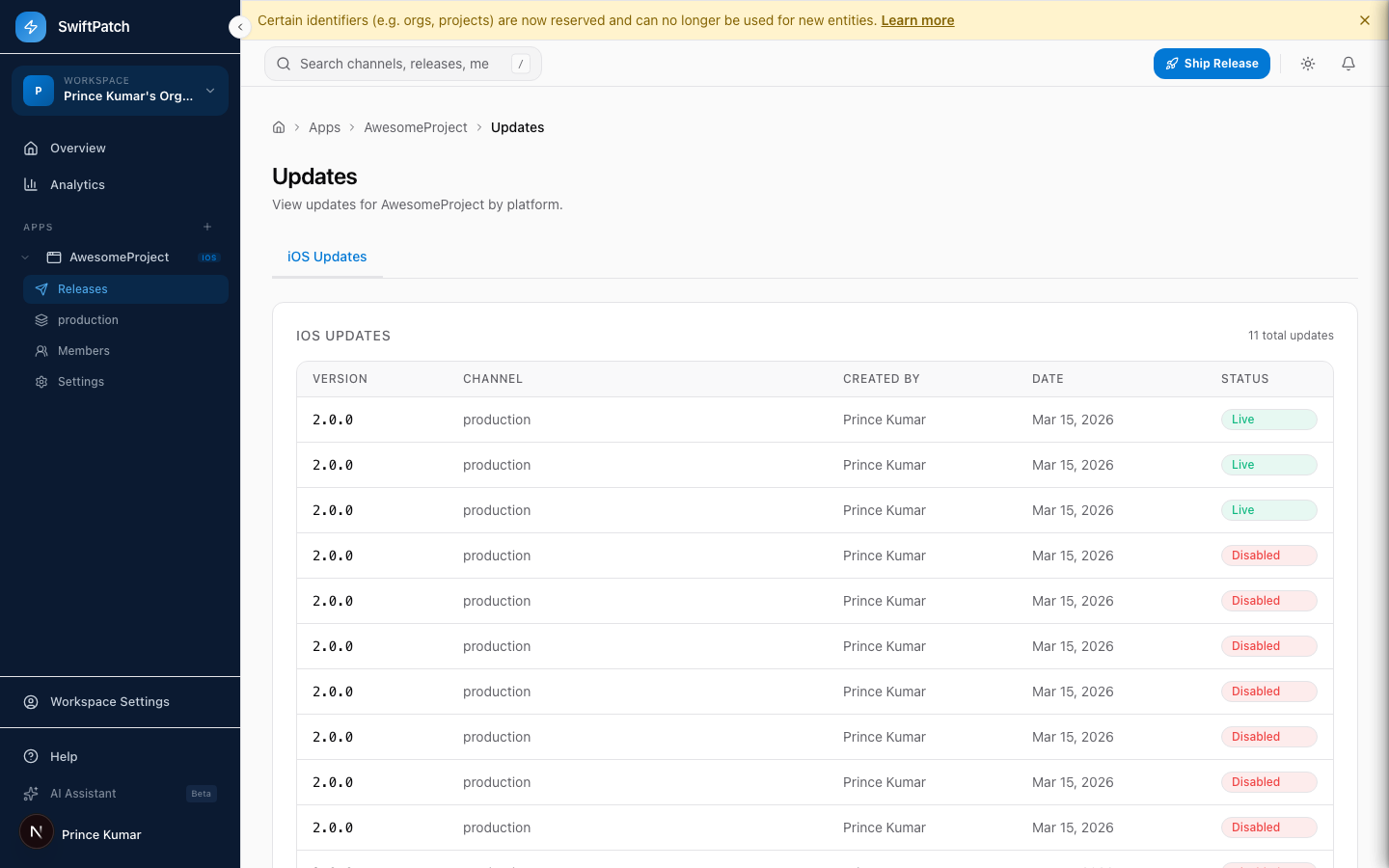
Expand an app in the sidebar and click Releases to see only that app's updates, organized by platform tabs.
Release Statuses
- Live -- Active. Eligible devices receive this update on their next check, subject to rollout percentage.
- Disabled -- Rolled back or manually disabled. No new devices receive it. Devices already running it are unaffected.
A low Success rate on a Live release signals a possible crash or compatibility issue. Consider disabling while you investigate.
Managing Rollout
The Rollout column shows what percentage of users receive the update. A typical strategy:
Step 1: Start at 10-25%.
Step 2: Monitor Success rate and Installs.
Step 3: Increase to 50%, then 100%.
Step 4: Roll back if issues appear.
See Rollouts for details.
Release Details
Click a release row for deeper info:
- Install metrics -- Total installs and success rate
- Rollback count -- Devices that reverted
- Bundle size -- Size of the differential patch
- Release notes -- Description from publish time
- Target version -- Compatible binary version
Rolling Back a Release
Step 1: Find the release in the list.
Step 2: Click the ... menu.
Step 3: Select Rollback or Disable.
Step 4: Confirm.
The release becomes Disabled immediately. Users who have not installed it yet receive the most recent Live release instead.
Rolling back does not remove the update from devices that already installed it. Publish a new release with the fix instead.
Publishing from the Dashboard
Step 1: Click Ship Release.
Step 2: Select your app and platform.
Step 3: Upload your JavaScript bundle.
Step 4: Set channel, target version, rollout percentage, and release notes.
Step 5: Click Publish.