Apps
An app in SwiftPatch represents a React Native application you want to deliver OTA updates to.
In older dashboard versions, apps were called "projects." Some screenshots and API fields (such as projectId) still use the previous name.
The Apps Page
The Apps page shows a summary of your workspace -- total apps, channels, team members, and active releases -- followed by a searchable list of every app.
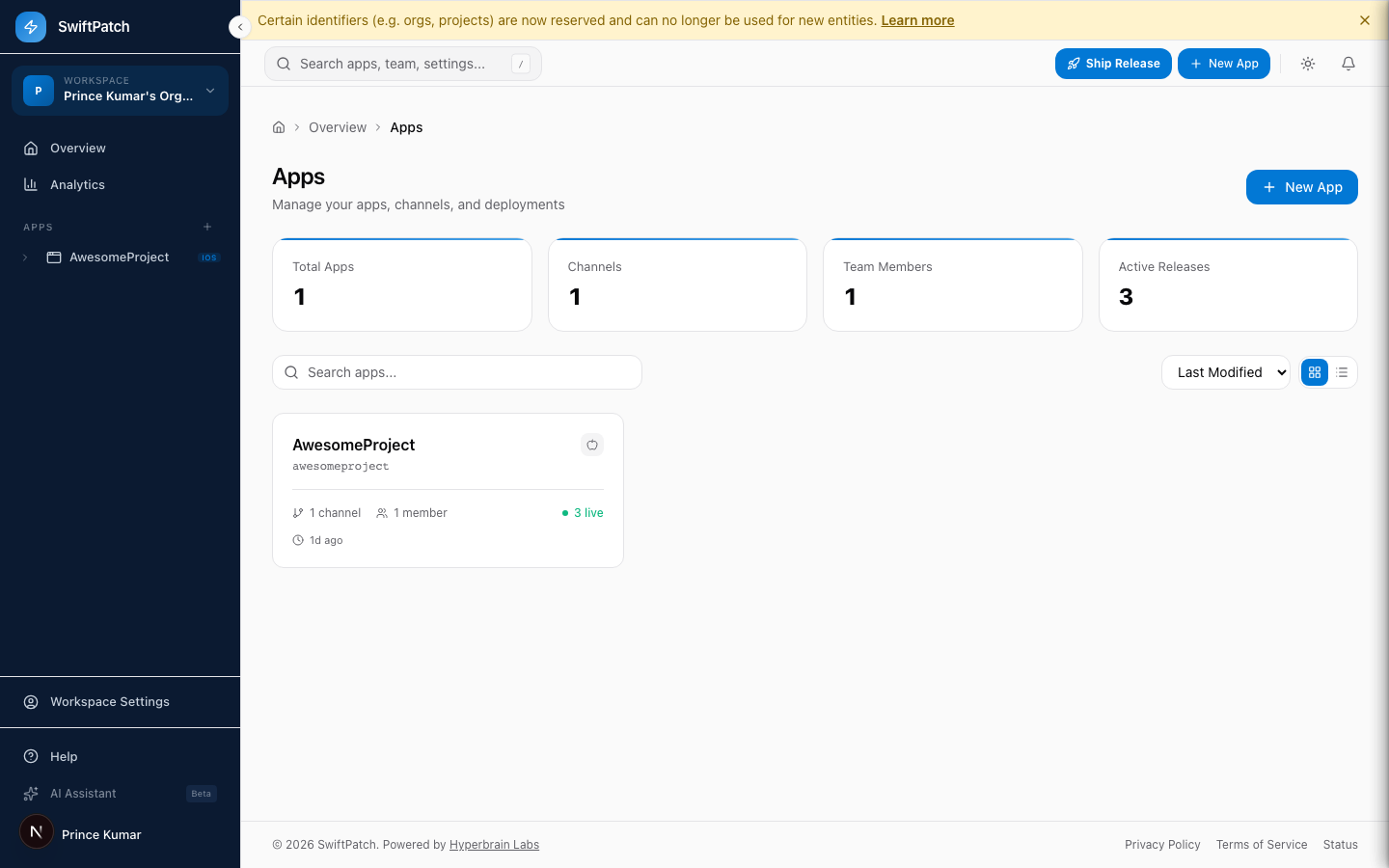
You can search by name, sort by last modified date, and switch between grid and list views. Click + New App to create one.
App Overview
Click an app card to see its details at a glance.
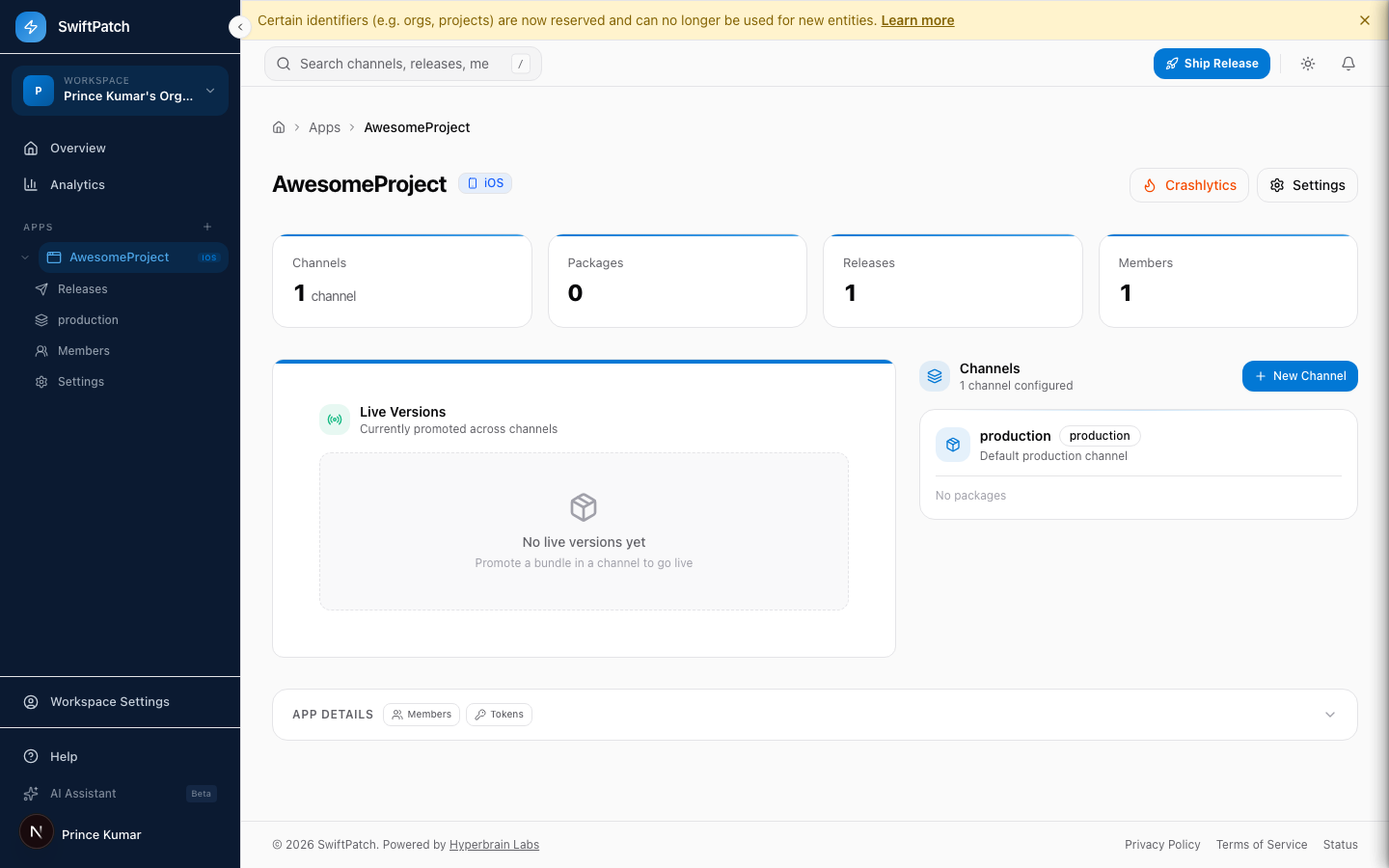
| Section | What it shows |
|---|---|
| Summary cards | Channels, packages, releases, and members |
| Live Versions | Bundles currently active across channels |
| Channels | Deployment channels with a link to add more |
| App Details | Members and tokens |
Creating an App
Step 1: Click + New App.
Step 2: Enter a name.
Step 3: Select platforms -- iOS, Android, or both.
Step 4: Click Create.
A default production channel is created automatically. You can add more channels (staging, beta, canary) from the app overview. The app name generates a lowercase slug (e.g., AwesomeProject becomes awesomeproject) used in CLI commands and API calls.
Configuring Platforms
- iOS only -- Expects iOS-compatible bundles
- Android only -- Bundles target the Android runtime
- Both -- Separate bundles per platform, released on independent schedules
Managing Channels
Channels are named deployment targets that control which users get which bundle version.
Default Channel
Every app starts with a production channel.
Adding a Channel
Step 1: Open the app overview.
Step 2: In the Channels panel, click + New Channel.
Step 3: Name it (e.g., staging, beta, canary).
Step 4: Click Create.
Common Strategies
| Strategy | Channels | Purpose |
|---|---|---|
| Simple | production | Ship directly to all users |
| Staged | staging + production | Test before promoting |
| Multi-tier | canary + beta + production | Graduated rollout |
Promote a bundle between channels instead of re-uploading. This guarantees the exact same bundle.
Deployment Keys and Tokens
Each channel has a unique deployment key your app uses to check for updates. Find them under the Tokens tab in app details.
Keep deployment keys secure. They grant read-only access but should not be publicly exposed.
App Settings
| Setting | Description |
|---|---|
| Name | Display name |
| Platforms | Target platforms |
| Deployment Keys | Per-channel keys used by the SDK |
| Collaborators | Team members and their roles |
| Bundle Signing | Enable RSA code signing |
Deleting an App
Step 1: Open the app and click Settings.
Step 2: Scroll to Danger Zone.
Step 3: Click Delete App and confirm by typing the app name.
This permanently removes all releases, channels, analytics, and configuration. It cannot be undone.